
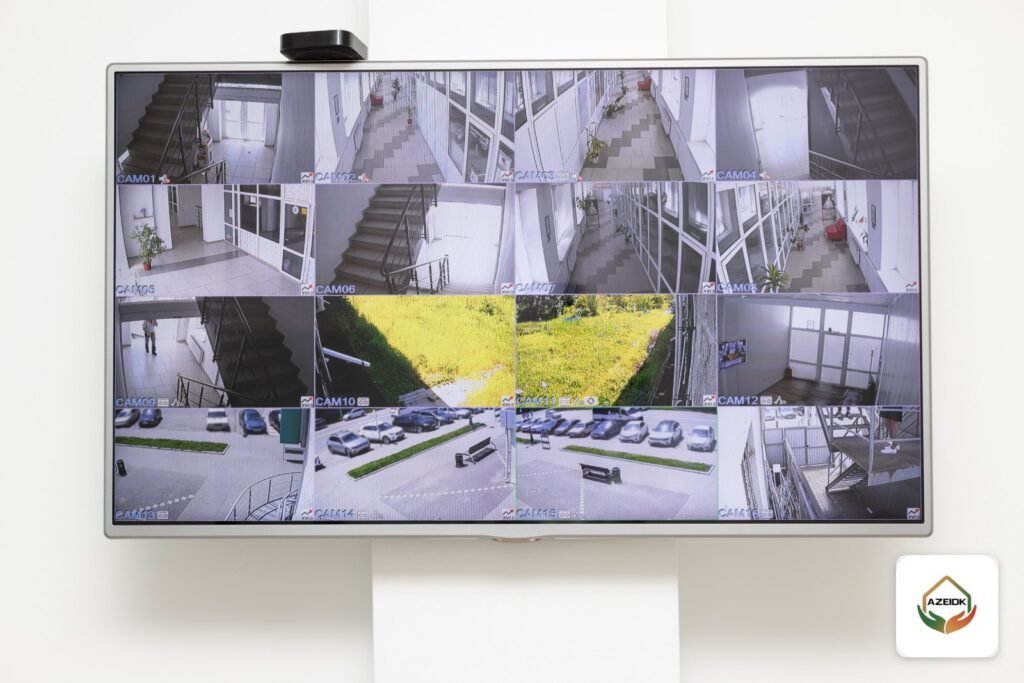
The simplest way to connect CCTV to TV is a single HDMI cable. Most recorders (NVR or DVR) have an HDMI output: run the cable to an HDMI input on the TV, then select that input with the TV remote. If the TV is far from the recorder, or you want a wireless option, you can go through a phone or a computer, each with its limits. Systems without a DVR can also be shown on a TV, with restrictions worth knowing before you rely on them.
Key takeaways
- The standard method: an HDMI cable from the recorder’s output to the TV’s HDMI input.
- Some recorders output 4K over HDMI, others only 1080p; the VGA outputs on the recorders below stop at 1080p.
- Wireless viewing goes through the phone app or PC software, then screen mirroring to the TV.
- Without a DVR, IP or Wi-Fi cameras can be shown on a TV through the app, but recording usually stays on each camera’s memory card.
- For shops and offices, a screen wired directly to the recorder is the most stable option for all-day viewing.
In this article
How to connect CCTV to TV with HDMI
These steps apply to most Hikvision, Dahua and other recorders:
- Make sure the recorder is running and the cameras appear on it.
- Connect an HDMI cable from the HDMI port on the back of the recorder to any HDMI port on the TV.
- Press Source or Input on the TV remote and select the HDMI port you used.
- The recorder’s interface appears with the cameras in a split view. Plug a mouse into the recorder’s USB port to use the menu.
- In the recorder’s display settings, choose an output resolution the TV supports and the split layout (1, 4, 9 or 16 cameras).
On a new system, recorder activation, drive initialisation and the recording schedule come first, and are handled by the technician as part of security and surveillance system installation.
Recorder video outputs: examples from AZEIDK’s pages
Before buying a TV or monitor for the system, check the recorder’s video outputs in its datasheet:
| Recorder | HDMI | VGA or other outputs | Note |
|---|---|---|---|
| Hikvision DS-7608NXI-K1(B) (NVR) | 1 output, up to 4K (3840 × 2160) at 30 Hz | VGA up to 1920 × 1080 at 60 Hz | Independent outputs; audio out via RCA |
| Hikvision DS-E04HQHI-B (DVR) | Up to 1920 × 1080 at 60 Hz | VGA at the same resolution | Simultaneous output; audio via HDMI |
| Hikvision DS-E04HGHI-E (DVR) | 1 output, up to 1920 × 1080 | 1 VGA, up to 1920 × 1080 | Audio via HDMI |
| Bosch DIVAR IP all-in-one 4000 | HDMI 2.0 at 4K/60 Hz and HDMI 1.4 at 4K/30 Hz | DisplayPort 1.2 at 4K/60 Hz | Records and manages up to 32 IP cameras |
In practice, a 4K TV shows its full resolution only if the recorder’s output supports 4K, as on the NVR above. With a 1080p output, a Full HD TV is enough. Higher resolution pays off when 9 or 16 cameras are shown together, as explained in our guide to 4K CCTV cameras and monitors.
Connecting CCTV to a TV with VGA
An older TV or monitor with a VGA input (the blue 15-pin port) can be used, with two caveats: VGA carries picture only, no sound, and on the recorders above it is limited to 1920 × 1080. Many current TVs have no VGA input at all, so HDMI comes first. On the Hikvision NVR above, both outputs can be used at once: a TV on HDMI at reception and a monitor on VGA in the manager’s office.
When the TV is far from the recorder
The recorder is best kept in a locked, secure place out of visitors’ reach, while the TV sits in reception or a majlis. Common solutions:
- An HDMI cable of suitable length on a concealed route, rated for that length.
- An HDMI extender over network cable for longer runs.
- A PC near the TV running the CCTV software, connected to the recorder over the local network and feeding the TV through HDMI.
Cable routes are best planned with the camera cabling itself; see our guide to CCTV camera cable.
How to connect CCTV to a TV wirelessly
The recorders above have no wireless output to a TV. Wireless viewing works indirectly:
From phone to TV
Add the cameras to the phone app (Hik-Connect for Hikvision, DMSS for Dahua) as in our guide to viewing CCTV on your phone, then use the phone’s screen mirroring to a smart TV that supports it. This suits occasional viewing, but the phone must stay on the app, and there may be a delay.
From computer to TV
Install Hikvision iVMS-4200 or Dahua SmartPSS on a PC or laptop as described in CCTV software for PC, then show its screen on the TV through HDMI or a wireless display method both devices support.
Smart TV apps
Some smart TVs let you install apps from their own store. Check whether the camera manufacturer offers an official app in your TV’s store specifically, and avoid unknown apps that ask for your recorder’s login details.
Connecting CCTV to a TV without a DVR
“Without a DVR” usually means IP or Wi-Fi cameras recording to an internal memory card. For example, the Hikvision DS-2CD2T46G2-2I/4I network camera supports a microSD card of up to 512 GB according to its page. There is no device with an HDMI output in this setup, so the picture reaches the TV through the phone app with mirroring, or through PC software.
Limits of this approach:
- Each camera records to its own card, so there is no central place to search or export footage.
- Card capacity sets the retention period, and if a camera is stolen or damaged its recording goes with it.
- TV viewing depends on a phone or PC; it is not a standalone, always-on display.
Analog cameras (HD over coax) need a DVR that supports their format for both viewing and recording. For what works offline, see CCTV cameras without internet. For shops and offices that need a screen running all day, a recorder wired to the TV remains the clearest solution; our CCTV recorder guide explains how to choose one.
Common problems and fixes
| Problem | Likely cause | What to do |
|---|---|---|
| TV shows “No signal” | Wrong input selected or loose cable | Select the correct HDMI input and try another cable |
| “Unsupported resolution” or black screen | Recorder output set higher than the TV supports | Connect a monitor to VGA temporarily or lower the output resolution in the recorder menu |
| Interface shows but some tiles are blank | Camera offline or unpowered | Check the camera, cable and PoE port |
| No sound | Using VGA, or audio leaves by another port | Use HDMI if the recorder sends audio over it, or the dedicated audio output |
| TV switches itself off | Energy saving or sleep timer | Disable auto power-off in the TV settings |
Frequently asked questions
How do I connect CCTV to my TV?
Run an HDMI cable from the recorder to the TV, then select that HDMI input with the Source button on the remote.
Can I connect CCTV to a TV without a DVR?
Yes for IP or Wi-Fi cameras, through the phone app with screen mirroring or through a PC. Recording then usually stays on each camera’s memory card.
How do I connect CCTV to a TV wirelessly?
View the cameras in the phone app or PC software, then mirror the screen to a smart TV that supports it.
Do I need a 4K TV for CCTV?
Only if the recorder has a 4K output and you view many cameras together. With a 1080p output, a Full HD TV is enough.
Can a TV and a second monitor run at the same time?
Yes on recorders whose HDMI and VGA outputs work together, such as the DS-7608NXI-K1 and DS-E04HQHI-B according to their datasheets.
Why is there no sound on the TV?
VGA does not carry audio. Some recorders send audio over HDMI and others through a separate audio output, so check your recorder’s datasheet.
Summary
Connecting CCTV to a TV starts with the recorder’s HDMI output, which is the stable answer for all-day viewing. Wireless methods and setups without a DVR are fine for occasional viewing at home, but they depend on a phone or PC. Before buying the TV, check the recorder’s output resolution, where the recorder sits and the distance to the screen.
Need a permanent CCTV display for your shop or office? Send the number of cameras and the locations of the recorder and screen, and our team will prepare the right connection and display setup. Talk to the AZEIDK team
Related guides
- Low Current Systems for Hospitals: Network, CCTV, Access Control, PA and Fire Alarm as One Package
- Fire Safety in Office and Administrative Buildings
- Fire Safety Equipment List for Facilities in Saudi Arabia
- Visitor Management Systems for Companies and Compounds: Pre-Registration, Badge Printing and Integration with Gates and CCTV