
CCTV software for PC (the client software) is what a shop owner or facility manager needs to watch cameras from an office screen, go back through recordings and export a clip for the police or an internal investigation, without standing in front of the recorder. In the Saudi market the two programs you meet most are iVMS-4200 from Hikvision and SmartPSS from Dahua.
Below: what each program does, how to add your recorder, play back footage, export a clip that opens on any computer, and whether the PC should record. For setup by a specialist, see AZEIDK’s security and surveillance systems team.
Short answer: For Hikvision equipment use iVMS-4200, a free program from the manufacturer. For Dahua equipment use SmartPSS Lite: Dahua has ended service for some older SmartPSS 2.0 versions and points users to SmartPSS Lite. In both programs you add the recorder by its IP address, user name and password, then play back recordings and export the clip you need to the PC.
Key takeaways
- The software follows the recorder brand: iVMS-4200 for Hikvision, SmartPSS Lite for Dahua.
- The default port for adding a Hikvision device in iVMS-4200 is 8000; for a Dahua device in SmartPSS it is 37777, unless the installer changed it.
- Recordings normally stay on the recorder’s hard drive. The software is a window to view and download them.
- When you export a clip in the manufacturer’s original format, export the player with it so the recipient can open it.
In this article
- What does CCTV software for PC actually do?
- iVMS-4200 or SmartPSS: which one do you need?
- Adding the recorder to your CCTV software
- Playing back recordings and finding a clip
- Exporting a CCTV clip to a PC or USB stick
- Can the PC record instead of the recorder?
- Users, permissions and securing the software
- Common mistakes with CCTV software
- CCTV operation support from AZEIDK
- Frequently asked questions
- Summary
What does CCTV software for PC actually do?
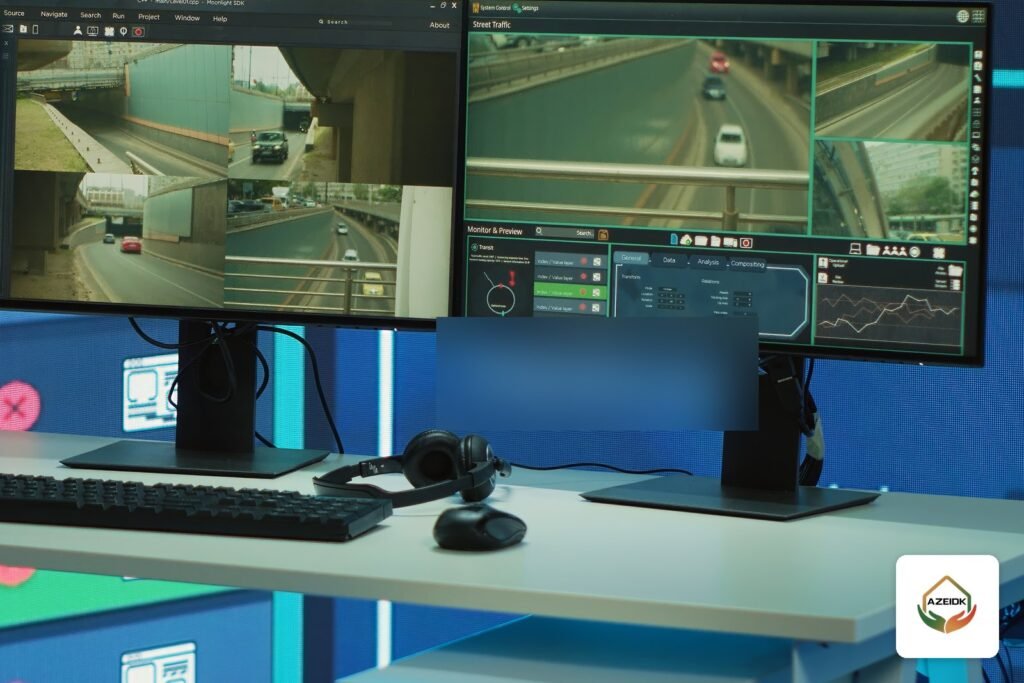
The recorder (an NVR for IP cameras, a DVR for analog cameras) records and stores the video on its hard drive. The PC software connects to the recorder over the network and gives you four main functions:
- Live view: several cameras on one screen in different layouts.
- Remote playback: searching recordings stored on the recorder by channel, date and time.
- Download and export: saving a specific clip to the PC or a USB stick.
- Configuration: changing some camera, recorder and schedule settings, depending on the user’s permissions.
Phone viewing through Hik-Connect or DMSS is covered in our article on viewing CCTV cameras on your phone.
iVMS-4200 or SmartPSS: which one do you need?
Match the software to the recorder brand: Hikvision means iVMS-4200, Dahua means SmartPSS Lite.
| Item | iVMS-4200 (Hikvision) | SmartPSS Lite (Dahua) |
|---|---|---|
| Intended devices | Hikvision recorders and cameras | Dahua recorders and cameras |
| Cost | Free from the manufacturer | Downloaded from Dahua’s support site |
| Default port when adding manually | 8000 | 37777 |
| Ways to add devices | Online devices found on the network, IP/Domain, IP segment, Hik-Connect account, file import | Auto search, manual add by IP, serial number (SN) for P2P devices, file import |
| Mac version | iVMS-4200 Mac for macOS 10.12 and later, without access control or intercom | Check Dahua’s support page for the version |
| Matching phone app | Hik-Connect | DMSS |
Hikvision describes iVMS-4200 as compatible with most of its hardware, with modules for video, access control, intercom and alarms. Dahua published a notice that it stopped service for some SmartPSS 2.0 versions from 15 August 2024 and named SmartPSS Lite as the alternative. If a PC still runs an old SmartPSS build, move to SmartPSS Lite from Dahua’s official source.
Download only from the manufacturer’s website; a tampered installer can carry malware onto the camera network.
Adding the recorder to your CCTV software
Before you start, collect four details: the recorder’s IP address, the service port, the user name and the password. Make sure the PC is on the same network, or that there is a secure way to reach the recorder from outside.
In iVMS-4200
- Open Device Management and choose to add a device.
- If the recorder is on the same network, it appears under Online Devices. Select it and enter the login details.
- Or choose IP/Domain and enter the address, the port (8000 by default per the user manual), the user name and the password.
- Enable importing the channels to a group so the cameras appear in live view.
The software can also add devices through a Hik-Connect account, add an IP segment of devices that share the same port and credentials, or import several devices at once from a CSV file.
In SmartPSS
- On first launch the program asks you to create a login password for the software and security questions to recover it.
- From Devices, run Auto Search on your network’s IP range, then select the recorder and enter its credentials.
- Or add it manually: device name, address, port (37777 by default per the SmartPSS manual), group, user name and password. The SN field is only for devices using P2P.
If the device shows Offline, check the address, port, password and network with your installer before changing any recorder setting.
Playing back recordings and finding a clip
Recordings normally sit on the recorder’s hard drive and the software reads them remotely. In iVMS-4200 open Remote Playback, choose the camera and date, and a timeline shows the recorded periods. The manual also covers other search types, including event and alarm playback and synchronous playback of several cameras.
In SmartPSS open Playback, or right-click a live view window and choose Playback, then pick the channel and date.
Check the recorder’s clock before you search; a wrong clock makes a clip look missing. Retention depends on drive size and recording settings, not on the software; see our article on CCTV storage and bandwidth calculation.
Exporting a CCTV clip to a PC or USB stick
In iVMS-4200
- Download by time: during playback, right-click the image, choose Download, and set the start time, end time and file name.
- Clip tool: set the start and end of the clip during playback and save it to the PC.
- Several cameras: the software can download footage from up to 16 cameras at once, with a Download Player option to save the player alongside the files.
In SmartPSS
From Playback, select the recording, trim it to the part you need, then export it. The SmartPSS manual notes that exporting in Original Format requires ticking Export Smart Player as well.
Before you hand over the clip
- Open the file on another computer and confirm it plays.
- State the camera name, date and time as shown on screen in your handover note.
- Do not edit or trim the clip in video editing software. Hand it over as the CCTV software exported it.
- If the drive is about to overwrite old footage, export immediately.
Can the PC record instead of the recorder?
Both programs can save video on the PC, within limits that differ between them:
- Manual local recording: press record on a camera window during live view and the video is saved to the path set in the software settings. Useful for capturing something you are watching right now.
- Scheduled recording on the PC: SmartPSS includes a PC-NVR module with disk allocation and a per-channel record plan (by schedule, motion detection or alarm). In iVMS-4200, the manual stores scheduled video recording on the recorder itself or on a storage server, not on the local PC.
For most facilities this does not replace a recorder: a PC gets switched off and updated, and recording stops with it. The SmartPSS manual also warns that re-allocating disk space in PC-NVR deletes all recordings on that disk. Keep primary recording on an NVR or DVR on a UPS, and use the PC for viewing and exports.
If your facility falls under the Saudi security surveillance cameras regulations for recording and retention, relying on an office PC alone is a risk. Details are in our article on the Saudi security surveillance cameras law.
Users, permissions and securing the software
- Do not use the recorder’s admin account on every PC. Create a user on the recorder for each person with defined rights: view only, or view, playback and download.
- Use strong passwords. The SmartPSS manual calls for 8 to 32 characters combining at least two of upper case, lower case, numbers and symbols.
- Update the software and the recorder firmware from the manufacturer’s sources.
- Lock the monitoring PC when you step away, especially at reception and cashier desks.
If you need to watch several branches from one place, a basic client may not be enough. See our article on multi-branch CCTV central monitoring.
Common mistakes with CCTV software
- Installing an old or modified copy from an unofficial site.
- Entering the web port (80) instead of the service port (8000 or 37777).
- Exporting in original format without the player.
- Relying on PC recording instead of a recorder.
- Sharing the admin account between staff.
- Searching on a recorder whose clock is wrong.
CCTV operation support from AZEIDK
AZEIDK’s security and surveillance systems team can install the right software for your recorder brand, add the devices, set up users and permissions, and train the person in charge on playback and clip export. If the recorder or cameras develop a fault, our maintenance team handles diagnosis and repair. AZEIDK holds ISO 9001, ISO 14001 and ISO 45001 certificates covering the design, supply, installation and maintenance of CCTV and access control systems.
Frequently asked questions
What is the Hikvision CCTV software for PC?
iVMS-4200, a free Hikvision program for live view, playback, downloads and device management. There is also a Mac version for macOS 10.12 and later.
What is the Dahua CCTV software for PC?
SmartPSS Lite. Dahua ended service for some older SmartPSS 2.0 versions from 15 August 2024 and named SmartPSS Lite as the alternative.
How do I copy CCTV footage to a USB stick?
Play the recording in the software, set the start and end time, and download the clip to the PC with the player if it is in original format. Then copy it to the USB stick and test it on another computer.
Why won’t the software connect to my recorder?
Usually a wrong IP address, port or password, or the PC is on a different network. Check the service port: 8000 for Hikvision and 37777 for Dahua unless it was changed.
Do I still need a recorder if I have PC software?
Yes, in most facilities. A PC may be switched off or updated and recording stops, while an NVR or DVR is built for continuous recording.
What is the difference between an NVR and a DVR?
An NVR works with IP cameras over the network; a DVR works with analog cameras over coaxial cable. The PC software connects to both in the same way.
Which is better, Hikvision or Dahua?
There is no single answer; it depends on the site, the model and the budget. Keeping cameras, recorder and software in one ecosystem makes operation and support simpler.
Summary
Choosing CCTV software for PC is easy: iVMS-4200 for Hikvision, SmartPSS Lite for Dahua. Setup matters more: correct port and credentials, users with defined permissions, a correct recorder clock, and someone who can export a clip the recipient can open. The recorder stays the primary place for recording.
Software will not connect, or not sure how to export a clip? Send us the recorder brand, model and number of cameras, and we will arrange the setup remotely or on site. Talk to the AZEIDK team
Related guides
- WATEX Fire Pumps: The Complete Guide to WATEX Pumps in Saudi Arabia (Models, Approvals, Capacities)
- Cla-Val Fire Pump Valves: 50B Relief Valve, 134-05 Deluge Valve and WC-1 Waste Cone
- Mall and Commercial Building Fire Safety: Engineering Guide
- Fire Safety in Clinics and Small Medical Centres in Saudi Arabia