
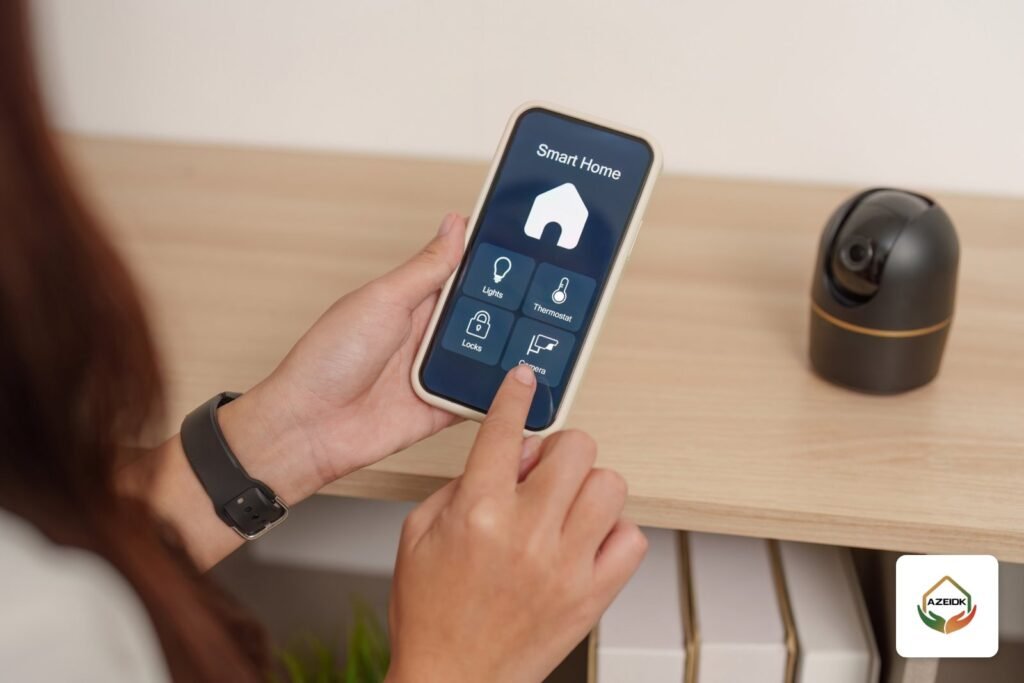
How to connect an EZVIZ camera to your phone, in short: install the EZVIZ app and create an account, connect the phone to a 2.4 GHz Wi-Fi network, tap “+” on the home page, scan the QR code on the camera label and enter the Wi-Fi password. The camera then appears in your account and you can watch it live from anywhere.
This is a first-time setup guide based on EZVIZ’s official support pages: preparing the network, adding the camera by QR scan or through the camera’s own hotspot (AP mode), the verification code, video encryption, sharing with family, initialising the microSD card, CloudPlay cloud storage and firmware updates. The examples are models AZEIDK GROUP supplies, such as the EZVIZ C6TC indoor camera, as part of our security and surveillance solutions.
Key takeaways
- EZVIZ states that most of its security cameras work on 2.4 GHz Wi-Fi only, so keep the phone on that band while adding the camera.
- A device can be bound to one account only. If it is on a previous owner’s or installer’s account, it must be deleted there first.
- The verification code is 6 capital letters on the device label, and the AP-mode hotspot password is “EZVIZ_” followed by that code.
- Share cameras through Family & Guests instead of handing out your account password.
- Initialise the microSD card in the app after installation and keep automatic firmware updates on.
In this article
- What to prepare before you start
- Does your camera support 5 GHz Wi-Fi?
- How to connect an EZVIZ camera to your phone by QR code
- If scanning fails: pairing through the camera hotspot (AP mode)
- The verification code: where to find it and why to protect it
- Video encryption and account protection
- How to share an EZVIZ camera with family
- Storage: microSD card or CloudPlay?
- Updating the camera firmware
- Moving the camera to another account or selling it
- If the camera shows offline after setup
- Common setup mistakes
- How AZEIDK GROUP can help
- Frequently asked questions
- Summary
What to prepare before you start
- App and account: the EZVIZ app from the App Store, Google Play or HUAWEI AppGallery, registered with a phone number or email address.
- 2.4 GHz network name and password: one wrong character stops the setup.
- Where to test: run the first setup close to the router, then move the camera to its final position.
- microSD card: insert it with the camera unplugged, and do not exceed the capacity the model supports.
- The label: it carries the QR code, serial number and verification code. Keep a private photo of it and never post it in group chats.
Does your camera support 5 GHz Wi-Fi?
EZVIZ’s official FAQ says its security cameras support 2.4 GHz only, apart from a short list of dual-band models. Check the datasheet before buying and pairing. Here are three models listed on the AZEIDK GROUP site, with data from those product pages:
| Model | Wi-Fi band | Wired port | Max microSD |
|---|---|---|---|
| EZVIZ C6TC | 2.4 GHz (802.11b/g/n) | Not listed on the product page | 128 GB |
| EZVIZ H6C | 2.4 GHz (802.11b/g/n) | RJ45, 10/100M | 256 GB, plus CloudPlay |
| EZVIZ TY7 | Wi-Fi 6, 2.4 and 5 GHz | RJ45, 10/100M | 512 GB |
Many home routers in Saudi Arabia broadcast both bands under one network name, so the phone joins 5 GHz and pairing a 2.4 GHz-only camera fails. Give the 2.4 GHz band its own name in the router settings, or ask your internet provider to do it, and connect the phone to it before adding the camera.
How to connect an EZVIZ camera to your phone by QR code
These steps follow EZVIZ’s support article “How to add a new device in the EZVIZ App”:
- Open the EZVIZ app and log in.
- Power the camera. If it was set up on another network before, press and hold the reset button. The hold time differs by model, and EZVIZ’s own support pages give different durations, so follow the quick start guide for your model. Some models announce “Reset successfully”.
- Wait until the indicator flashes red and blue alternately or blue quickly. Some cameras show no light change, so wait about a minute.
- Connect the phone to a 2.4 GHz network only.
- Tap “+” on the home page and scan the QR code on the label on the back or bottom of the camera. Make sure the app has camera permission.
- Follow the prompts and enter the Wi-Fi password.
- Once the device is added, it appears on the home page and you can view it.
EZVIZ notes that a device can only be added to one account. A second-hand camera, or one an installer set up on his own account, must be removed from that account first. For shops, register cameras on the business owner’s account, not an employee’s or a technician’s.
If scanning fails: pairing through the camera hotspot (AP mode)
Sometimes the app asks the phone to join a network broadcast by the camera itself, and you may see “Unable to join network EZVIZ_SN”. EZVIZ’s support page handles it like this:
- Turn off mobile data on the phone.
- Confirm the camera is in configuration mode, with the indicator flashing blue quickly.
- Keep the camera within 1.5 metres of the router during setup.
- Open the phone’s Wi-Fi list and find a network named EZVIZ_ followed by the camera serial number.
- Join it manually. The password is “EZVIZ_” followed by the verification code on the label.
- Return to the app and finish network configuration.
If it still fails, EZVIZ lists router settings that block setup: DHCP must be on, IPv6 off, and firewall blacklist or whitelist filters off. It adds that most devices work better with more than 2 Mbps upload per camera, and the app includes a Wi-Fi signal check under its network tools. If the camera has an Ethernet port, a cable solves a weak signal. To estimate data use, see how much internet data CCTV cameras use.
The verification code: where to find it and why to protect it
The verification code is 6 capital letters printed on the device’s white label. It can also be shown in the app on the phone that set up the camera, under Settings, then Device Info or About. On some models you tap an eye icon, receive a one-time password by email or SMS, and the code appears.
The code is used in AP-mode setup, so treat it as a key. Do not post photos of the label or leave it visible on a camera in a public area. If you lose it, EZVIZ advises not deleting the device from your account and contacting its support team.
Video encryption and account protection
EZVIZ’s privacy page explains that you can set a password, separate from your account password, to protect device videos and images. Turn it on in device settings, then enable two-factor authentication so a code is sent to your phone when you sign in. The same page describes Sleep Mode, which stops recording, live view and detection, and a physical privacy shutter on some indoor pan-tilt cameras.
Updating the app and enabling encryption matter in practice: see our report on CVE-2026-32683 in the Hik-Connect and EZVIZ apps and the manufacturer’s advice.
How to share an EZVIZ camera with family
Your account password gives full control, including deleting devices. Sharing is the better route. Per EZVIZ support:
- Tap “Account” at the bottom right of the home page.
- Choose “Family & Guests”, then “Add Sharing”.
- Enter the email or phone number of the other person’s EZVIZ account.
- Select the devices to share and tap each one to edit its permissions.
- Select “Authorize encryption password” if the guest should not be asked for it.
- Accept the service agreements. Sharing completes once the guest accepts the invitation.
Two conditions apply: the guest account must be in the same region as yours, and some devices cannot be shared. If a device is missing from the sharing list, it is not shareable.
Storage: microSD card or CloudPlay?
Initialise the card after installation
Open device settings from the three dots next to the camera name, then “Storage Status” or “Record List”, then “Memory Card” and tap “Initialize”. Initialising erases the card, so save any important clip first.
CloudPlay cloud storage
According to EZVIZ’s CloudPlay page, the service saves event clips triggered by motion, with 7-day or 30-day history plans for one camera, up to 4 cameras (Home) or up to 10 cameras (Business). On a 7-day plan, day 8 overwrites day 1, so download clips you need. The global page notes that plans, details and prices vary by country and region, so check the subscription page in the app to see which plans, and whether a free trial, are available to your account in Saudi Arabia before paying.
In practice, a card is enough for most homes and small shops. The cloud helps when you worry that a thief could take the camera together with its card.
Updating the camera firmware
In device settings, scroll to “Device Version” and tap to update, then follow the prompts. EZVIZ says the update takes up to 2 minutes and asks you not to leave the page until it confirms completion.
EZVIZ’s published policy says that with automatic updates on, the device updates itself at a convenient time, usually at night. It commits to security updates for at least 2 years from a model’s first shipment, and firmware cannot be downgraded after an update.
Moving the camera to another account or selling it
Because a camera binds to one account, delete it before selling it or handing it to a new tenant: open its live view, tap the gear icon at the top right, and scroll to “Delete Device”. If it has a CloudPlay plan, the same page offers subscription cancellation and clip deletion. EZVIZ warns that deleted cloud clips cannot be recovered.
If the camera shows offline after setup
A successful setup does not guarantee a stable connection. A new router, a changed Wi-Fi password or weak signal at the final mounting point can make the camera show offline. We cover the official fixes in Camera Offline in Hik-Connect or EZVIZ.
Common setup mistakes
- Pairing while the phone is on 5 GHz with a 2.4 GHz-only camera.
- Registering shop cameras on the installer’s account and struggling to recover them later.
- Giving the account password to family or staff instead of sharing with set permissions.
- Posting a photo of the label with the verification code.
- Using a card larger than the model supports, or not initialising it in the app.
How AZEIDK GROUP can help
AZEIDK GROUP supplies EZVIZ cameras for homes and shops, including the C6TC, H6C and TY7. For the wider range and where each model fits, read EZVIZ cameras for shops and homes. If you have a Hikvision or Dahua recorder to view on your phone, see CCTV remote viewing on mobile with Hik-Connect and DMSS. When a site outgrows home cameras, we design IP camera systems with a recorder as part of our security and surveillance systems.
Frequently asked questions
How do I connect an EZVIZ camera to my phone?
Install the EZVIZ app and log in, connect the phone to 2.4 GHz Wi-Fi, tap “+”, scan the QR code on the camera label and enter the network password.
Why does the app say the camera is already added to another account?
A device binds to one account only. Ask the previous account holder to delete it, then reset the camera and add it to yours.
What is the password for the EZVIZ_ hotspot?
According to EZVIZ support, it is “EZVIZ_” followed by the 6-letter verification code printed on the camera label.
Do EZVIZ cameras work on 5 GHz Wi-Fi?
Most EZVIZ cameras support 2.4 GHz only. Some models are dual-band, such as the Wi-Fi 6 TY7, so check the datasheet before buying.
Can I view the camera from more than one phone?
Yes, through Family & Guests sharing. Each person needs their own EZVIZ account in the same region as yours.
Do EZVIZ cameras need a monthly subscription?
No. Recording to the microSD card works without one. A subscription is only needed for CloudPlay cloud storage.
Summary
Connecting an EZVIZ camera to your phone takes minutes if you prepare a 2.4 GHz network and run the setup next to the router. Right after adding it, turn on video encryption and two-factor authentication, share the camera rather than the account, initialise the card and keep automatic updates on.
Need an EZVIZ camera for your home or shop? Tell us where it will be mounted and how far it is from the router, and we will suggest a suitable model, or a recorder-based system if you need one. Contact the AZEIDK GROUP team
Related guides
- TYCO vs Victaulic Fire Sprinklers: Comparing the Models AZEIDK Supplies by Application and K-Factor
- BS 5839-1 Fire Alarm Categories (L1 to L5, P1, P2 and M): What They Mean and When Saudi Consultants Specify Them, Compared with NFPA 72
- Grocery Store Requirements in Saudi Arabia: Extinguishers, Fridges, Wiring and CCTV
- CCTV Cameras (Security Surveillance Cameras): A Guide to Types, Resolution, Night Vision, Storage and the Saudi Law