
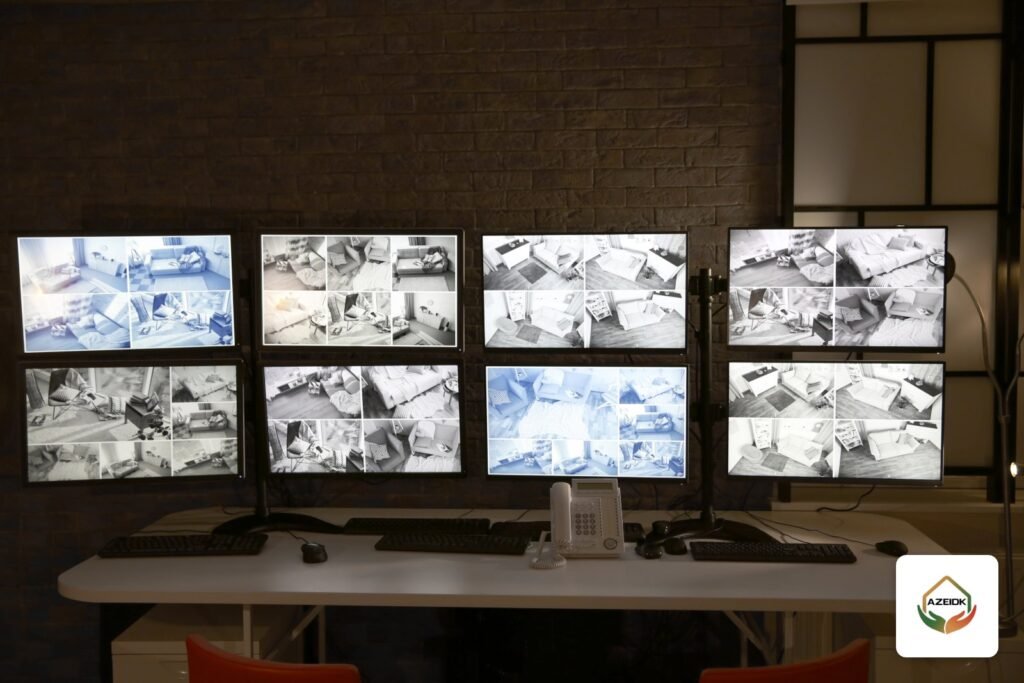
A monthly CCTV check answers one question: on the day you need footage, will it be there, complete, correctly time-stamped and readable? This checklist covers recording on every channel, HDD health and retention days, time sync, night image, lenses, user accounts and firmware.
It is for the facility manager who checks in-house between contractor visits, not a replacement for a maintenance contract. The menu paths come from the Hikvision recorder manual. Hikvision is one of the brands, alongside Dahua, that AZEIDK supplies as part of its security and surveillance systems.
Key takeaways
- Live view does not prove recording. Only playback of earlier days on every channel does.
- Compare the oldest recording on the HDD with the retention period set for your facility in the security requirements document.
- A clock minutes off weakens footage as evidence. Compare it with your phone monthly and confirm NTP sync is on.
- Review a recorded night clip: most infrared problems only show at night.
- The executive regulation requires authorised-only access with an entry log, and immediate reporting of any fault that stops the equipment through the electronic platform.
In this article
- Who does the monthly CCTV check, and where does it stop?
- What to prepare before the check
- Step 1: Is the recorder really recording every channel?
- Step 2: CCTV HDD check and actual retention
- Step 3: Date, time and NTP sync
- Step 4: Night image from a recorded clip
- Step 5: Lens cleanliness and fixed views
- Step 6: User accounts, passwords and access log
- Step 7: Event log and firmware
- Monthly CCTV check table
- When to stop and call a technician or report
- Common mistakes in the monthly check
- Frequently asked questions
- Summary
Who does the monthly CCTV check, and where does it stop?
This is an owner’s check: look, play back, compare and record, with no dismantling and no setting changes. The facility manager, on site every day, is usually first to notice a dead channel.
The check matters because of Article 3 of the Executive Regulation of the Security Surveillance Cameras Law, published in the Umm Al-Qura Gazette on 9 June 2023. It requires secure, clean equipment locations under the facility’s continuous supervision, storage media dedicated to the system, access limited to authorised people with an entry and exit log, and immediate reporting to the Directorate, through the electronic platform, of any fault that stops the equipment, cleared as fast as possible. Only regular checks find those faults in time.
The technician task list and quarterly and annual visits are in our guide to CCTV and security systems maintenance, and response times in CCTV maintenance SLA. AZEIDK provides CCTV maintenance under a separate CCTV and low current maintenance contract, independent of the fire systems contract.
What to prepare before the check
- A view and playback login: not the admin account, to avoid changing a setting by mistake.
- The channel list: number and location of each camera, ideally with a handover snapshot of each view.
- The required retention period for your facility, written at the top of the checklist.
- Last month’s checklist, to spot slow changes such as shrinking retention.
Step 1: Is the recorder really recording every channel?
This is the core of the recorder (NVR or DVR) check. In the Hikvision NVR user manual (2023), you go to Playback and select the date and cameras. Pick a day from last week and all channels.
- Check each timeline. A gap on a continuous-recording day means the camera or recording dropped out.
- Play a random moment on each channel and confirm it shows the right location.
- For motion or event recording, play a known event, such as staff arriving in the morning.
Protect any important clip you find: the Hikvision manual states that locked video is not overwritten. Hand footage over only on the official request set out in the regulation, as explained in CCTV recording retention.
Step 2: CCTV HDD check and actual retention
Disk status
On Hikvision recorders, disks are listed under Storage > Storage Device. A disk that has not been initialized will not record until it is, and that is the technician’s job. The manual’s Maintenance > HDD Operation > S.M.A.R.T. page shows each disk’s S.M.A.R.T. information and status. Some recorders also offer a more detailed Health Detection under Maintenance > HDD Operation, but Hikvision limits it to 4 TB to 8 TB Seagate disks made after 1 October 2017. Dahua recorders have equivalent pages, named differently by firmware version; check your model’s manual.
Read and record only. Do not press Initialize, which erases the disk, and do not enable the option to keep using a disk that failed self-evaluation. Report the message to the contractor. Messages such as HDD Error and HDD Full are explained in CCTV recorder error messages.
Retention
Find the oldest available date on each channel, count the days to today, and compare with the required period and last month’s figure. The executive regulation sets no single number: it refers the period to the security requirements document that applies to your facility, and Article 10 bars unauthorised parties from keeping recordings outside it. Retention well below or far above the requirement is a finding. The exception is footage held for an investigation: Article 6 requires it to be kept until the investigation ends or for the period in the requirements document, whichever is longer.
Step 3: Date, time and NTP sync
Compare the on-screen clock with your phone and write the offset on the checklist. A small, steady offset is minor; one that grows each month means sync has stopped. Wrong time makes a clip hard to find and to tie to an incident.
In the Hikvision manual, sync is set under System > Network > TCP/IP > NTP by enabling it and entering the server address, port and sync interval in minutes. IP camera time can also sync from the recorder. Confirm it is enabled and leave server changes to the contractor or network administrator.
Step 4: Night image from a recorded clip
Play a clip from between 2 and 4 a.m. for every outdoor camera and dark corridor. Look for:
- A white haze: usually infrared reflecting off a dirty cover or a nearby wall.
- Moving specks: webs or insects drawn to the infrared, a common cause of false motion recording.
- A dark colour image at night: the day/night switch is not working.
- New lighting that dazzles the camera.
Step 5: Lens cleanliness and fixed views
Compare each channel with its handover snapshot. A changed view means the bracket moved or someone turned the camera.
Staff clean only cameras reachable safely from the floor, with a soft, dry cloth and per the camera manual. High-level and facade cameras are noted on the checklist for the technician.
Step 6: User accounts, passwords and access log
On Hikvision recorders, accounts are managed under System > User. Each month, delete or disable the account of anyone who has left the site. The Hikvision manual states that by default a Guest can only use local and remote playback, while an Operator has all camera operation permissions, so give each person the lowest level they need.
The manual recommends passwords of at least 8 characters from three character categories, changed regularly, monthly or weekly on high-security systems. Dahua’s best practices add: keep account lockout on, review online users and logs regularly, and keep the equipment, especially storage devices, in a dedicated room and cabinet with controlled access. Match this with the equipment access log required by Article 3.
Step 7: Event log and firmware
The event log shows what live view hides: short channel losses, restarts after power cuts, failed logins. On Hikvision, search it under Maintenance > Log Info by period and type, and note anything repeated.
For firmware, record each device’s version and compare it with the contractor’s last report. The technician runs the upgrade (Maintenance > Upgrade) after exporting the configuration (Maintenance > Import/Export), since the recorder reboots after an upgrade to activate the new firmware, and also after a configuration import.
Monthly CCTV check table
Print one per recorder, with site, recorder number, channels and required retention at the top.
| Item | How to check | Pass | If it fails |
|---|---|---|---|
| Continuous recording | Play back a day from last week on all channels | No gaps on the timeline | Report channels and dates to the contractor |
| HDD status | Disk page and S.M.A.R.T. | All disks recording, no error messages | Do not initialize; urgent report to the contractor |
| Retention | Oldest available date per channel | Matches your facility’s required period | Review with the contractor |
| Time | Compare the clock with your phone | Small offset that does not grow month to month | Ask the contractor to fix NTP |
| Night image | Recorded clip between 2 and 4 a.m. | Clear image, no reflection or haze | Cleaning or view adjustment on the next visit |
| Lenses and views | Compare with the reference snapshot | View and coverage as handed over | Note and tell the contractor |
| User accounts | User list | No accounts for people who have left | Disable the account at once |
| Log and firmware | Event log and version number | No repeated errors, version recorded | Raise it in the monthly report |
When to stop and call a technician or report
These cannot wait:
- A recorder not recording, a disk error, or a dead entrance or emergency exit channel: urgent fault report to the contractor.
- Any fault that stops surveillance equipment in a facility covered by the law: report it through the electronic platform as Article 3 requires, then record the date it was cleared.
- An unknown account or repeated failed logins: change the admin password and tell the contractor.
Sign the checklist and file it with the contractor’s reports and the fault log. Together they show compliance at any inspection.
Common mistakes in the monthly check
- Looking at the live view and assuming the system is fine.
- Initializing a faulty disk and losing all footage.
- Checking with the admin account and changing a setting by mistake.
- Leaving former staff accounts active.
- Writing “OK” with no numbers. Retention days and clock offset reveal change.
Frequently asked questions
How do I know my CCTV cameras are recording?
Play back a day from last week on all channels. A complete timeline that plays back means the channel is recording. Live view alone proves nothing.
How do I check the CCTV hard drive?
Read the disk page and S.M.A.R.T. in the maintenance menu, record any error, and never initialize the disk yourself: it erases the footage.
How often should CCTV be checked?
The executive regulation sets no frequency. A monthly in-house check is good practice; technical visit frequency is set in the maintenance contract.
Why is the recorder time different from the real time?
Usually NTP sync is off or cannot reach its server, so the clock drifts. Ask the contractor to fix it.
How long must CCTV footage be kept?
The executive regulation refers the period to the security requirements document that applies to your facility. Compare that figure monthly with the oldest recording.
Does the monthly check replace a CCTV maintenance contract?
No. It finds problems early; repairs, disk replacement, firmware updates and cleaning at height remain the technician’s work.
Summary
A monthly CCTV check is seven items a facility manager can finish in one sitting. Its real value is in the numbers written down each month, which show a problem before someone asks for footage that is not there.
Found a channel that is not recording or a disk with an error? Send us the recorder model, channel count and your check results, and the AZEIDK CCTV maintenance team will review them and set out what is needed. Talk to the AZEIDK team
Related guides
- Warehouse Smoke Extraction: Mechanical Exhaust, Make-Up Air and Coordination with High-Piled Storage Sprinklers
- Fire Extinguishers for Wedding Halls and Event Venues: Quantity, Types and Mounting in the Hall and Kitchen
- Mixing Firefighting Foam Concentrates of Different Types or Brands: When It Is Allowed and How to Refill a Foam Tank
- SASO Technical Regulation for Fire-Fighting Equipment: Scope, Standards and Supplier Duties