
Camera offline in Hik-Connect or EZVIZ means the camera or recorder cannot reach the app’s server over the internet. It does not always mean the camera has stopped recording. The usual causes are a power or network cable problem, a new router or changed Wi-Fi password, a 2.4GHz-only camera on a 5GHz network, or wrong IP and DNS settings on the recorder. This guide puts the fixes in order, following the official EZVIZ and Hikvision support pages, with a pointer to AZEIDK security and surveillance systems.
Key takeaways
- Start simple: power, then the router, then a power cycle of the camera (unplug for 10 to 30 seconds).
- After a router or Wi-Fi password change, a wireless camera needs its network set up again from the app.
- Many Wi-Fi cameras support 2.4GHz only, so the phone must be on a 2.4GHz network during setup.
- On Hikvision devices, confirm Hik-Connect is enabled under Platform Access and that IP, gateway and DNS are correct.
- To find a camera’s IP address, use Hikvision’s SADP tool or the router’s list of connected devices.
In this article
- What does “camera offline” mean in the app?
- Why a camera goes offline, and the quick fix
- EZVIZ camera offline: the official steps
- Hik-Connect offline: fixing Hikvision devices
- I changed the router and the cameras dropped. What now?
- Why won’t my Wi-Fi camera connect to 5G?
- How to find a CCTV camera IP address
- How to connect a CCTV camera to your mobile
- When do you need a CCTV technician?
- Frequently asked questions
- Conclusion
What does “camera offline” mean in the app?
The phone app does not talk to the camera directly. The camera or recorder (NVR / DVR) connects to the manufacturer’s server over the internet, and the app streams through that server. When the chain breaks at any point, the device shows Offline.
So a camera can be working and recording on site while the app says it is offline. The opposite case is different: if the recorder is online and one channel shows “No Video” or a black screen, the problem is the camera or its cable, not the internet. This article deals with the offline case only.
Why a camera goes offline, and the quick fix
| Symptom | Likely cause | Fix |
|---|---|---|
| Every device on site is offline | Internet or power loss at the router | Check the internet line and restart the router |
| Cameras dropped after a router change | Network name, password or IP range changed | Set up Wi-Fi again, or change the recorder’s IP to match the new router |
| Wi-Fi camera will not finish setup | Phone on 5GHz and camera supports 2.4GHz only | Join the phone to a 2.4GHz network and retry |
| Camera far from the router drops in and out | Weak Wi-Fi signal | Move the router closer or add an access point |
| Recorder works locally but not in Hik-Connect | Platform Access disabled, or wrong DNS or gateway | Enable Hik-Connect and correct the network settings |
| Everything looks right but stays offline | Firewall or router setting blocking the connection | Review router settings with the network technician |
EZVIZ camera offline: the official steps
EZVIZ’s support page for the “Device is offline” message starts with the camera’s indicator light:
- Solid blue or slow blue blinking: refresh the home page in the app. The camera may already be back online.
- Slow red blinking: restart the router, then unplug the camera for 10 to 30 seconds and plug it back in.
- Still offline: set up the network again. If the camera supports 2.4GHz only, connect the phone to a 2.4GHz network first. In the app, tap the three dots, then Device Settings, then Wi-Fi. Hold the camera’s reset button for a few seconds until the light blinks blue quickly, then confirm the network name and password.
Reset button position and light colours vary by model, so check your model’s manual. EZVIZ cameras available from AZEIDK include the EZVIZ C6TC and EZVIZ H6C, with the rest on the EZVIZ brand page.
Hik-Connect offline: fixing Hikvision devices
Hikvision systems usually connect through the recorder (NVR or DVR), wired to the router. Hikvision’s official support pages give these steps in order:
- Confirm the recorder is physically connected to the network (cable and port lights).
- In the network settings, open Network, then Advanced, then Platform Access, and make sure Hik-Connect is enabled.
- Note the current IPv4 address, then enable DHCP and save. If DHCP is already on, turn it off and save, then on and save again, and check whether the address changed.
- Set the preferred DNS to 8.8.8.8 and the alternate to 8.8.4.4, or to the ISP’s DNS or the gateway address.
- With a static IP, confirm the gateway matches that of a PC on the same network and that the recorder’s address is in the same subnet.
- On recorders, use Net Detect to ping the gateway and the DNS server.
- On firewalled networks, Hikvision states that ports 6002, 6800, 8555, 9010 and 9020 must not be blocked.
- Check that the router is not blocking P2P traffic and that the recorder is not on the router’s blocked devices list.
- As a last step, upgrade the firmware or reset the device to default.
Router and firewall changes are the network owner’s responsibility, and Hikvision says plainly that it does not change customer routers. On a company network, ask the IT administrator.
I changed the router and the cameras dropped. What now?
This is one of the most common questions, and the fix depends on the camera type:
- Wi-Fi camera: it is still saved to the old network name and password. Either give the new router the same name and password, or set up Wi-Fi again from the app as in the EZVIZ steps above.
- Wired recorder with a static IP: if the new router uses a different address range, the recorder keeps its old address and gateway and cannot reach the internet. Enable DHCP on the recorder, or set a new IP in the router’s range with the correct gateway and DNS.
- IP cameras behind a recorder: they usually connect to the recorder through its PoE ports or a switch, so a router change does not affect them. What matters is getting the recorder back online.
Why won’t my Wi-Fi camera connect to 5G?
People usually mean 5GHz Wi-Fi, not the mobile network. EZVIZ’s own support page covers cameras that support 2.4GHz only. Modern routers broadcast both bands, sometimes under one network name, so the phone joins 5GHz and the camera setup fails.
The fix: split the two bands under different names in the router settings, or turn on a 2.4GHz network temporarily, and connect the phone to it during setup. Check the supported bands in the datasheet or model page before buying.
How to find a CCTV camera IP address
- Hikvision SADP tool: searches for Hikvision devices on the same local network, lists them and lets you edit their network settings. Your PC or phone must be on the same network.
- Router device list: the router’s admin page shows connected devices and their addresses. This works with any brand.
- Recorder screen: on recorder-based systems, the camera management menu lists the added channels and their addresses.
How to connect a CCTV camera to your mobile
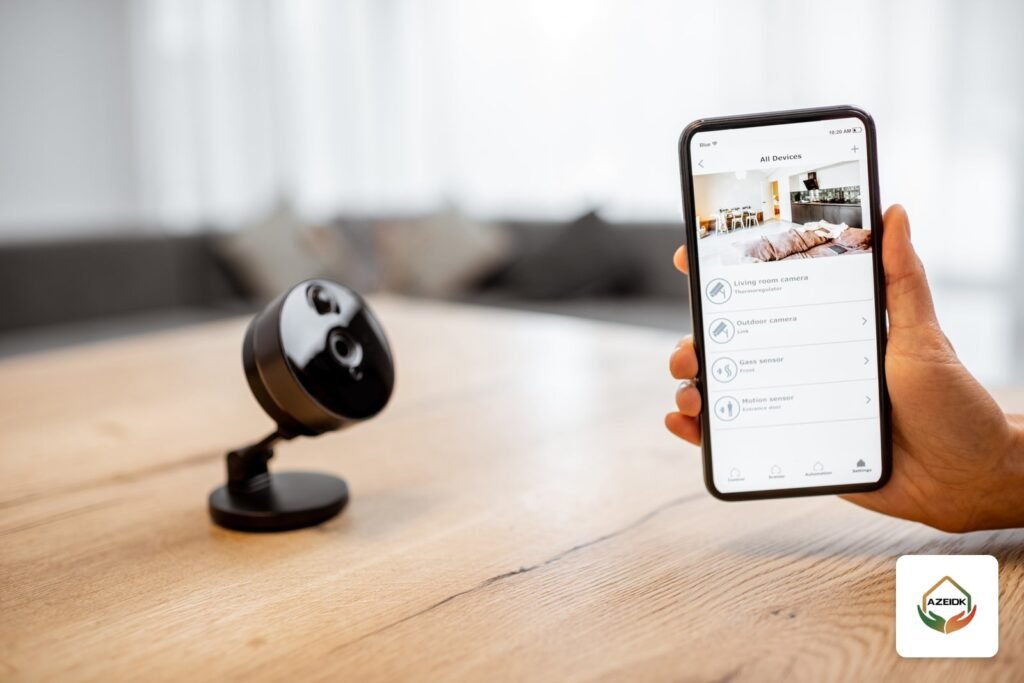
The general steps: connect the recorder to the router with a network cable, confirm it gets a correct IP and reaches the internet, enable the cloud service (Hik-Connect on Hikvision), then add the device in the app by scanning the QR code on the device or in its settings. Home Wi-Fi cameras are set up entirely from the app. First-time setup and user permissions are covered step by step in viewing CCTV cameras on your phone with Hik-Connect and DMSS.
Once connected, do not open router ports (port forwarding) without a clear need, and change default passwords. On projects with many cameras, switch selection and PoE budget matter, as explained in PoE switch power budget for CCTV.
When do you need a CCTV technician?
If you have worked through the steps and devices are still offline, or several cameras drop at the same time, the cause is usually cabling, the switch or the network design. A site check helps here. Recorders such as the Hikvision DS-7608NXI-K1B NVR are on the Hikvision brand page. For projects that need a complete network, see network and communication systems.
Frequently asked questions
Why does my camera show offline in the app when it is working?
The app depends on the camera or recorder reaching the manufacturer’s server over the internet. The camera can record locally while the internet link is down or network settings are wrong.
My EZVIZ camera is offline. What is the first step?
Look at the light. If it blinks red slowly, restart the router and unplug the camera for 10 to 30 seconds. If it does not come back, set up Wi-Fi again from the app.
I changed the router and the cameras dropped. What should I do?
Wi-Fi cameras need their network set up again. A recorder with a static IP needs DHCP enabled or a new address in the new router’s range.
Why won’t my Wi-Fi camera connect to 5G?
Many cameras support 2.4GHz only. Connect the phone to a 2.4GHz network during setup, or split the bands in the router.
How do I find my camera’s IP address?
Use SADP for Hikvision devices, the router’s connected devices list, or the camera list on the recorder screen.
Hik-Connect shows offline but the NVR works. Why?
Usually Platform Access is disabled, DNS or the gateway is wrong, or a firewall blocks the ports. Follow Hikvision’s steps above in order.
Conclusion
A camera showing offline is a connection problem in most cases. Work through it in order: power and router, then Wi-Fi and its band, then IP, DNS and Platform Access on the recorder, then the firewall. That sequence solves most cases without opening any device.
Cameras keep dropping, or you need your CCTV system on your phone? The AZEIDK team checks the network and recorder and sets the system up again. Talk to the AZEIDK team
Related guides
- Structured Cabling and Network Systems: Standards and Testing
- Factory and Industrial Fire Protection: Engineering Guide
- FM200 System Price in Saudi Arabia: What Drives the Cost (Room Volume, Concentration, Cylinders and Integrity Testing)
- ZKTeco in Saudi Arabia: Access Control, Time Attendance and Turnstiles