
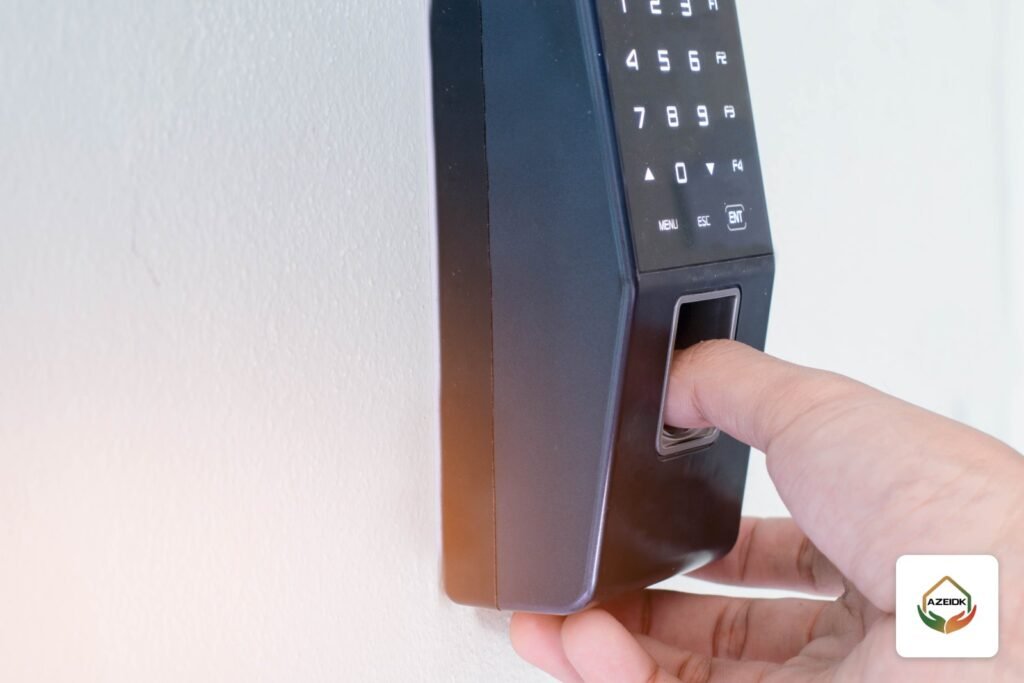
A ZKTeco fingerprint device for time attendance is run from almost the same menu on most models: you enrol each employee under User Management with an ID, name and role, then a fingerprint, face or card; you set the clock under System; and you pull the attendance log either to a USB flash drive or over the network into your attendance software. This guide walks through those steps in the order they appear in ZKTeco’s official manuals, with notes on the ZKTeco models supplied through AZEIDK security and surveillance systems.
Key takeaways
- Enrol at least one Super Admin first, otherwise anyone can open the device menu.
- The User ID is set at first enrolment only. Use the same number as payroll or your HR system.
- Set the date and time before the first shift. Every punch is stamped with the device clock.
- USB download suits a single device. A network connection suits several devices or branches.
- Menu names vary slightly between models and firmware versions, so keep the manual for your exact model.
In this article
- Which models does this guide cover?
- How do you open the ZKTeco device menu?
- Enrolling an employee on a ZKTeco fingerprint device: fingerprint, face and card
- Setting the date and time
- How do you download attendance records to a USB drive?
- Pulling attendance logs over the network (TCP/IP)
- Checking records on the device itself
- Common mistakes with ZKTeco attendance devices
- When do you need a technical team?
- Frequently asked questions
- Conclusion
Which models does this guide cover?
The steps apply to ZKTeco colour-screen time attendance terminals, the family shown in AZEIDK’s time attendance range. Each model differs in verification methods and ports, which decides which steps apply to you:
| Model | Verification | Listed communication |
|---|---|---|
| MB10-VL | Face and fingerprint | TCP/IP and USB host |
| F22 | Fingerprint, optional ID or Mifare card | TCP/IP, Wi-Fi, USB host, RS232/RS485, Wiegand |
| SF300 | Fingerprint, optional EM or IC card | TCP/IP, USB host, Wiegand |
| UA400 | Fingerprint, optional card reader | TCP/IP, optional USB |
The data comes from AZEIDK’s product pages. If your unit has no card reader or face camera, those options will not appear in the enrolment menu.
How do you open the ZKTeco device menu?
On keypad models press the menu key (usually M/OK). On touch models tap the menu icon on the home screen. ZKTeco’s official manual for one of its terminals states that the menu opens directly while no Super Admin exists. Once one is enrolled, the menu opens only after that admin verifies.
That is why the first job after installation is enrolling the admin. In practice it pays to enrol a second, backup admin as well. If the only admin leaves or their fingerprint changes, nobody can edit the device.
Enrolling an employee on a ZKTeco fingerprint device: fingerprint, face and card
The path on most units is User Mgt. > New User. The fields in order:
- User ID: 1 to 9 digits by default according to the manual, and it cannot be changed after first enrolment. Use the staff number so reports match payroll.
- Name: type it on the device or leave it and fill it later in the attendance software, which is easier for Arabic names.
- User Role: Normal User for staff, Super Admin only for the person who manages the device.
- Fingerprint: the device asks for the same finger more than once to build the template. Enrol two fingers per person where possible. A cut or dry finger is a common reason for failed matches.
- Face: on models that support it, such as the MB10-VL, the employee stands in front of the camera at the model’s working distance (30 to 50 cm on the MB10-VL page) until capture completes.
- Card: if a reader is fitted, present the card when prompted and its number is linked to the user.
- Password: optional and useful as a temporary fallback. The manual gives 1 to 8 digits by default.
After saving, ask the employee to punch once in front of you and check that their ID and name appear on screen.
Setting the date and time
Path: System > Date Time. Enter the date and time manually, confirm, and select 24-hour format and the date format on the same screen. Saudi Arabia runs on UTC+3 and does not observe daylight saving time, so if your device shows a Daylight Saving Time option, leave it off.
Why it matters: each punch is stored with the device time, not the software time. A clock running five minutes fast turns punctual staff into late arrivals on the report. After a long power cut or a board replacement, check the clock before the next shift. When the device is connected to network attendance software, many programs can sync device clocks from the server, as described in that software’s own manual.
How do you download attendance records to a USB drive?
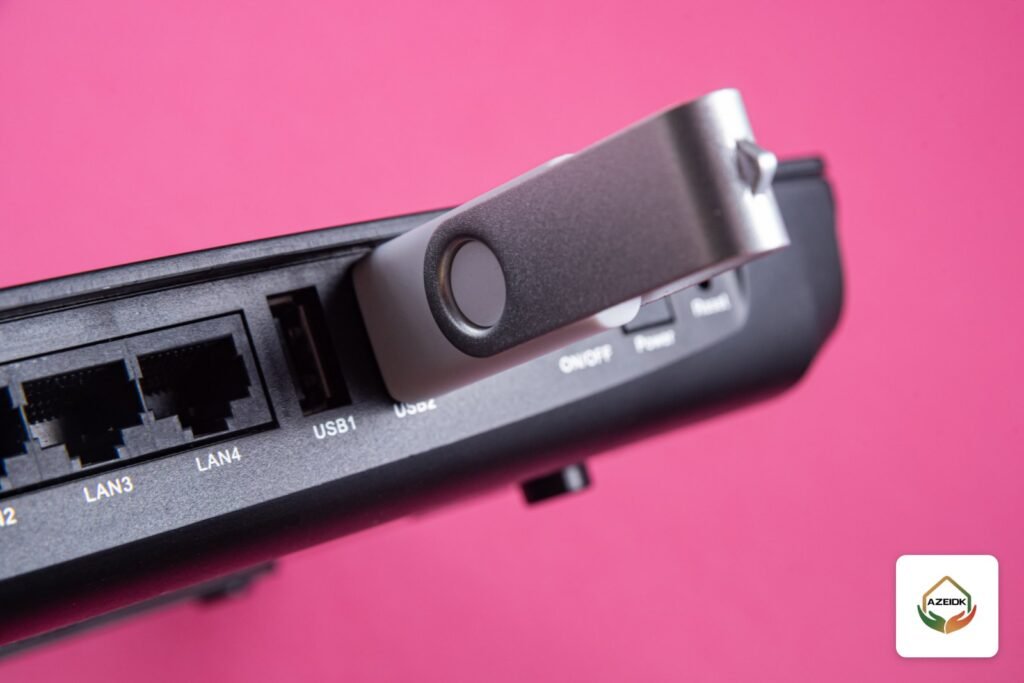
This works on devices with a USB host port and suits a single unit in a small office without a network. The steps as given in ZKTeco’s manuals for the SpeedFace-V5L and F18; the menu wording may differ slightly on your model:
- Insert the USB drive before any download or upload.
- Select USB Manager on the main menu.
- Select Download, then Attendance Data to copy all attendance records to the drive.
- To move staff and their templates to another unit, choose User Data, which exports user information, fingerprints and face images.
- Import the file into compatible attendance software using its USB import option, then run the report.
If the device does not read the drive, try a smaller drive formatted the way your model’s manual accepts. Do not clear records from the device until you have confirmed the file opened completely in the software.
Pulling attendance logs over the network (TCP/IP)
With more than one device or site, a network connection saves walking around with a flash drive. Path: COMM. > Ethernet. ZKTeco’s manual for one of its terminals lists these defaults, which may differ on your unit:
| Setting | Default in the manual | What to do |
|---|---|---|
| IP Address | 192.168.1.201 | Change to a fixed address inside your network range, unique per device |
| Subnet Mask | 255.255.255.0 | Match your router or switch settings |
| Gateway and DNS | 0.0.0.0 | Enter the gateway if the device must reach a server outside the LAN |
| TCP COMM. Port | 4370 | The port the attendance software uses to reach the device |
| DHCP | On/off option | A fixed address is safer, so the link does not drop when the address changes |
Then add the device in the attendance software with the same address and port and run a log download. For devices spread over branches, many models also offer Cloud Server Setting, where you enter a server address and port so the device pushes records automatically. Addressing and ports belong to the site’s network and communication systems and should be agreed with the IT team.
Checking records on the device itself
Open Attendance Search on the main menu, enter a user ID or leave it blank for everyone, and pick the time range. This screen helps when an employee disputes a report, because it shows what the device actually recorded before any processing in the software.
Common mistakes with ZKTeco attendance devices
- Enrolling staff before enrolling an admin, which leaves the menu open to anyone.
- User IDs that do not match staff numbers, which makes payroll matching painful.
- Leaving the factory clock, or switching on daylight saving.
- Using DHCP and losing the connection after the router restarts.
- Mounting face devices against direct sunlight or strong backlight.
- Downloading software or firmware from unofficial sites instead of ZKTeco’s official download centre or your supplier.
When do you need a technical team?
Day-to-day operation is within reach of an HR administrator. Networking several devices, wiring a unit to a door lock, door sensor and exit button, or linking it to central software is installation work. AZEIDK provides installation and programming and systems integration for attendance and access devices as part of its low current systems. See the full range on the ZKTeco brand page, and if the aim is opening a door or gate by fingerprint, read the access gates and turnstiles guide.
Frequently asked questions
How do I add a new employee to a ZKTeco fingerprint device?
Open the menu, go to User Mgt. > New User, enter the ID, name and Normal User role, then enrol a fingerprint, face or card depending on your model, and save.
How do I set the time on a ZK attendance device?
Go to System > Date Time, enter the date and time manually and choose 24-hour format. In Saudi Arabia keep daylight saving off.
How do I download fingerprint records to a USB drive?
Insert the drive, then USB Manager > Download > Attendance Data for punches, or User Data for staff and templates. Import the file into your attendance software.
What is the default IP of a ZKTeco device?
ZKTeco’s manual for one terminal lists 192.168.1.201 with port 4370. Values can differ by model, so read them under COMM. > Ethernet on your unit.
I am locked out of the device menu. What now?
The menu needs the enrolled admin to verify. If that admin is no longer available, contact your supplier or authorised dealer with proof of ownership. Avoid unlock tools from unofficial sources.
Can I copy staff from one device to another?
Yes, on USB models: download User Data from the first unit and use Upload on the second, or transfer users through networked attendance software.
Conclusion
Running a ZKTeco fingerprint device comes down to four fixed steps: admin first, staff enrolled with their staff numbers, a correct clock, and a download method that fits the size of the site. Get those right on day one and your attendance reports will hold up for payroll.
Need attendance devices installed or networked? AZEIDK can help you choose the model, install it and program it. Talk to the AZEIDK team
Related guides
- Smart Buildings: How Low Current Systems Integrate in One Building
- CCTV Supply and Installation Contract Template: Clauses to Include
- ISO Certification for Fire and Security Contractors: What ISO 9001, ISO 14001 and ISO 45001 Mean and How to Verify Them
- Wireless Bridge for CCTV: When to Use It and How to Size Distance and Throughput with Hikvision DS-3WF02C-5AC