
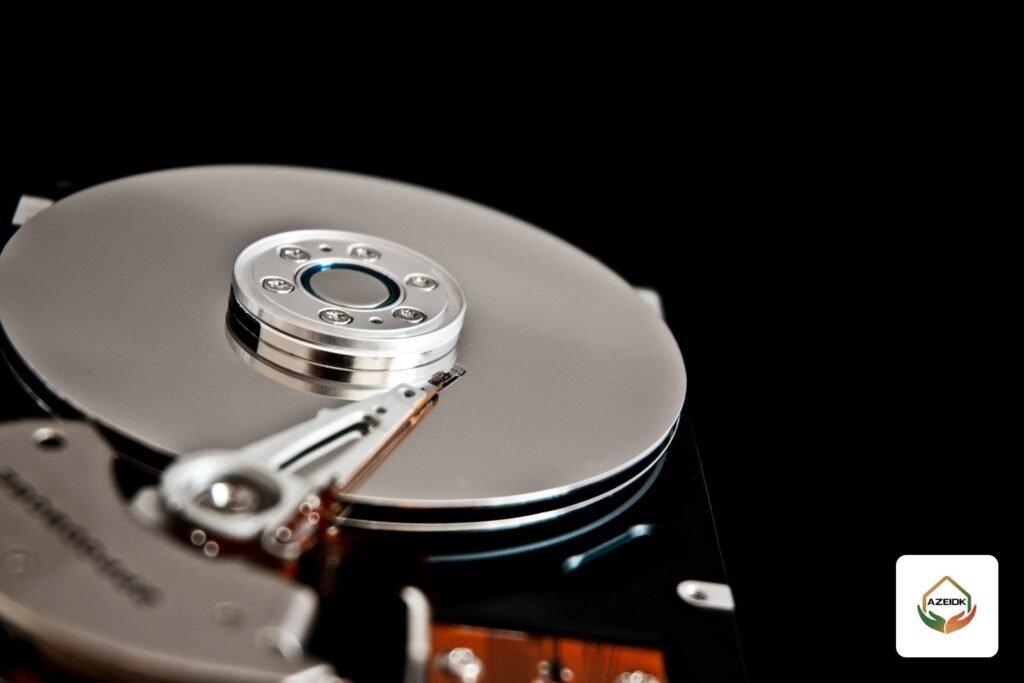
Most CCTV recorder error messages point to the hard disk, the network or the camera signal. HDD Full means the disk is full and overwrite is switched off. HDD Error means the recorder cannot read the disk or sees it as faulty. IP Conflicted means another device is using the same address, Illegal Login means someone tried a wrong password, and Video Signal Exception means one channel has lost its picture. This guide explains each message as it appears on Hikvision and Dahua recorders and what to check before you call a technician, as part of AZEIDK security and surveillance systems.
Key takeaways
- An exception message does not always mean the recorder is faulty. Many are caused by a setting, a cable or a network address.
- HDD Full usually clears when you enable Overwrite. It rarely means the disk must be replaced.
- Initializing a disk erases every recording on it, so export important clips first.
- IP Conflicted is fixed by giving every device on the network its own address.
- Message names and menu paths differ between models and firmware versions, so check your recorder’s manual.
In this article
- Where do exception messages appear on a recorder?
- CCTV recorder error messages on Hikvision and Dahua at a glance
- Hard disk messages: HDD Full and HDD Error
- Network messages: Network Disconnected and IP Conflicted
- Illegal Login: a failed login attempt
- Video Signal Exception and a lost channel picture
- Recording Exception: recording has stopped
- When do you need a maintenance technician?
- Frequently asked questions
- Conclusion
Where do exception messages appear on a recorder?
A DVR (digital video recorder) or NVR (network video recorder) monitors itself continuously. When it detects an abnormal condition, it writes it to the log and shows a hint on the live view screen if that hint is enabled. Hikvision manuals call these conditions Exceptions. You set them in the configuration menu under Exceptions, where you pick the exception type and then how the recorder should respond.
The response options listed in Hikvision manuals are Audible Warning, Notify Surveillance Center, Send Email and Trigger Alarm Output. Dahua recorders have a similar section called Exception in current firmware (Abnormality on older interfaces), split into tabs such as Disk, Network and Device. Each event offers actions such as Show Message, Buzzer and Send Email.
A practical tip: enable at least an email or app alert for disk messages. Many sites only find out that recording stopped weeks ago when they need footage after an incident.
CCTV recorder error messages on Hikvision and Dahua at a glance
| Message | What it means | Check first |
|---|---|---|
| HDD Full | The disk is full and the recorder is not overwriting old footage | The Overwrite option in storage settings |
| HDD Error | The recorder cannot read the disk or sees it as invalid | Disk status in the HDD menu, cables, initialization |
| No HDD (Dahua) | No disk is installed or the recorder does not detect it | Disk mounting, SATA and power cables |
| Network Disconnected | The recorder’s network cable has lost its link | Network cable and the router or switch port |
| IP Conflicted | Another device is using the same IP address | The router’s address list and camera addresses |
| Illegal Login | A login attempt with a wrong username or password | Who tried to log in, and apps still holding an old password |
| Video Signal Exception | Lost or faulty video signal on a channel | Camera cable and camera power |
| Input/Output Video Standard Mismatch | The video standard differs between camera, recorder or monitor | The video standard setting on the recorder |
| Recording Exception | The recorder could not record one or more channels | Disk status and the recording schedule |
Names in the table follow Hikvision’s manuals, and “No HDD” comes from Dahua’s manuals. On Dahua you will see close variants such as “HDD Error”, “No Space” for a full disk, and “IP Conflict” or “MAC Conflict” for an address clash, depending on the interface version.
Hard disk messages: HDD Full and HDD Error
HDD Full: the disk is full
A recorder is built to run nonstop. When the disk fills up, it should delete the oldest recordings and write over them. This feature is called Overwrite. If it is switched off, recording stops when the disk is full and HDD Full appears. In most cases the fix is to enable Overwrite in the advanced storage or recording settings.
If footage is not kept as long as the site needs, that is a capacity problem, not a fault. Work out the capacity you need from camera count, resolution and retention days with the CCTV storage calculator, and read how resolution and bitrate drive storage in our guide to NVR storage and bandwidth calculation.
HDD Error: the recorder cannot read the disk
This message appears when the recorder fails to write to or read from the disk, or finds the disk in an abnormal state. Open the HDD management menu and look at the status shown for the disk. A new disk usually shows as Uninitialized and must be initialized on the recorder before it can record.
Check in this order:
- Export important clips first if you can, because some fixes erase data.
- Power the recorder off and make sure the SATA data cable and the power cable are firmly seated on the disk and the board.
- Power it on and check the status. If the disk shows as Uninitialized, initialize it from the HDD menu, knowing this erases everything on it.
- If the message returns after initializing, test the disk in another recorder, or a known good disk in the same bay, to find out whether the fault is in the disk or the recorder.
- If disks keep failing, check power quality and ventilation around the recorder. Heat and power cuts both shorten disk life.
Many current recorders include a disk health check (S.M.A.R.T.) in the maintenance menu. When you replace a disk, choose a surveillance-rated drive that appears on the recorder manufacturer’s compatibility list.
No HDD on Dahua
The recorder sees no disk at all. The usual causes are a disk that was never installed, a loose cable or a disk that has failed completely. On recorders that run without a disk on purpose, for example a unit used only for live viewing, this alert can be disabled.
Network messages: Network Disconnected and IP Conflicted
Network Disconnected means the recorder’s network port has lost its link. Check the cable and the port lights on the recorder and the switch, and try another port. If the message comes and goes, the cause is often a damaged cable or a loose RJ45 plug.
IP Conflicted means the IP address given to the recorder is used by another device on the same network. This is common after a new router is installed or a device with a fixed address is added. Give the recorder a static address outside the router’s DHCP range, or reserve an address for it in the router, then update the address in your viewing apps. The same thing happens when several new cameras are installed together and all arrive with the same factory default address: each camera needs its own address before they are connected together.
On IP camera systems powered over the network, the problem may sit in the switch or its power budget, which we cover in our article on PoE switches and the CCTV power budget.
Illegal Login: a failed login attempt
This appears when a person or a program tries to log in with a wrong username or password. After a number of failed attempts, Hikvision and Dahua recorders lock the account for a while. The number of attempts and the lock time depend on the model and the settings.
The most common cause is not an attack. It is usually a phone or a PC that still holds the old password after it was changed and keeps trying to log in. Update the password in every app. If the message keeps appearing from addresses you do not recognise, review which recorder ports are open to the internet, set a strong password and update the firmware from the manufacturer’s official website.
Video Signal Exception and a lost channel picture
This message belongs to a specific camera channel and means the recorder is not getting a valid video signal from it. On analog DVRs, check the coax cable, the BNC connector and the camera power adapter. On NVRs, check the network cable, the PoE supply and the camera status in the camera management menu.
A quick test is to move the camera to another channel, or connect a working camera to the same channel. If the problem follows the camera, the fault is in the camera or its cable. If it stays on the channel, the fault is in the recorder. For the differences between the two system types and their typical faults, see our IP vs analog CCTV comparison.
Input/Output Video Standard Mismatch means the video standard the recorder expects differs from what it receives or sends out. Set the video standard in the recorder settings to match the installed cameras.
Recording Exception: recording has stopped
The recorder could not save footage for one or more channels. It is often linked to the disk messages above, but it can also appear with a healthy disk if the recording schedule is not set or the cameras send more data than the recorder can take in. Check the schedule for each channel, then compare camera bitrate and resolution with the recorder’s capacity in its datasheet.
When do you need a maintenance technician?
If HDD Error keeps returning with more than one disk, if Video Signal Exception stays after changing the cable and the camera, or if you cannot get back into the recorder after an account lock, have the system checked by a qualified technician. AZEIDK offers maintenance contracts for CCTV systems. Recorders available from AZEIDK include the Hikvision DS-7608NXI-K1B NVR and the Hikvision DS-E04HQHI-B DVR, as well as Dahua products.
Frequently asked questions
Why does HDD Full appear on a large disk?
Because Overwrite is switched off, so the recorder stops when the disk fills, whatever its size. Enable it in the advanced storage settings.
Does initializing a CCTV HDD erase recordings?
Yes. Initializing erases everything on the disk. Export important clips to a USB drive or a PC first.
Can I use any PC hard drive in a recorder?
A surveillance-rated drive is the better choice because it is designed for continuous writing. Check that it is on the recorder manufacturer’s compatibility list.
What does IP Conflicted mean on a Hikvision recorder?
Another device on the network is using the same IP address. Give the recorder a unique address or reserve one for it in the router.
Illegal Login keeps appearing. Has the recorder been hacked?
Not necessarily. The usual cause is an app that still holds an old password. If attempts keep coming from unknown addresses, change the password, update the firmware and review open ports.
How do I know if the fault is in the camera or the recorder?
Swap channels. If the problem follows the camera, the fault is in the camera or its cable. If it stays on the same channel, the fault is in the recorder.
Conclusion
Exception messages on Hikvision and Dahua recorders tell you where to start: the disk, the network, the user account or a camera channel. Check settings and cables before replacing parts, never initialize a disk before exporting what you need, and enable alerts so you do not discover a recording gap too late.
Is your recorder showing repeated error messages? AZEIDK can inspect the system and recommend the right fix under a CCTV maintenance contract. Talk to the AZEIDK team
Related guides
- Bosch CCTV Cameras in Saudi Arabia: DINION 5100i, FLEXIDOME 5100i and DIVAR IP all-in-one 4000, and When Consultants Specify Them
- CCTV Camera Hacking: How to Protect Your System with Passwords, Updates, Network Separation and Secure Remote Access
- Voice Evacuation Systems: When You Need Them and How They Work
- CCTV Cameras in Jeddah: Hikvision, Dahua and Bosch, Supply and Installation, Priced per Project